







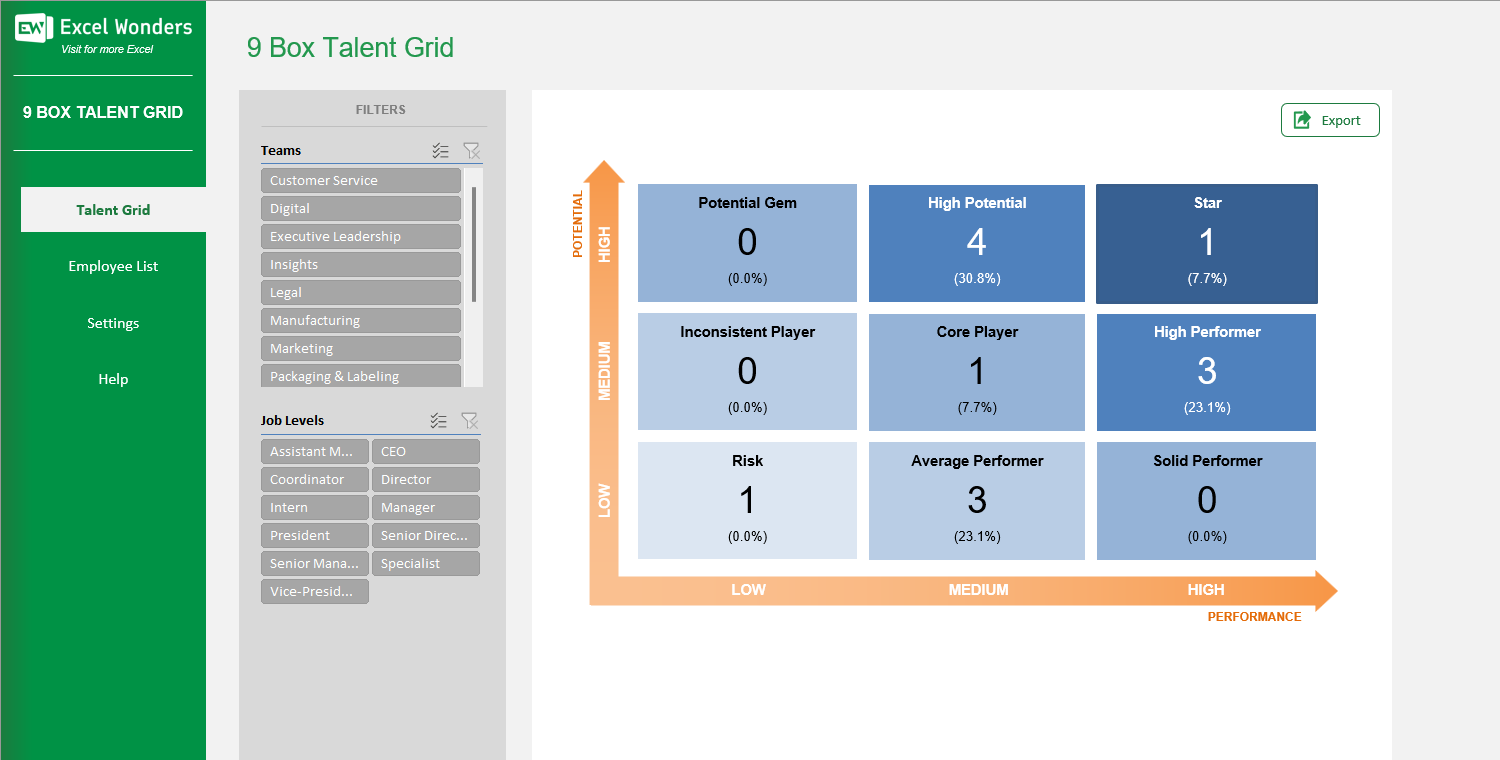
The 9 Box Talent Grid Excel Template is a well-known tool for leaders to conduct talent management and succession planning. It categorizes employees according to to their performance (how well they perform today) and their potential (how well can they perform in the future).
The 9 Box Talent Grid Excel Template is a well-known tool for leaders to conduct talent management and succession planning. It categorizes employees according to to their performance (how well they perform today) and their potential (how well can they perform in the future).

Struggling to assess team performance and future potential? Our 9 Box Talent Grid Excel Template offers a simple, effective way to map your workforce, making it the ideal talent mapping template for HR leaders and managers.
Designed for seamless talent review, this easy-to-use Excel tool lets you visually categorize employees by performance and potential, driving better succession planning and strategic decision-making.
Built by experts in talent management, this template combines proven HR methodologies with practical Excel functionality, ensuring accuracy and actionable insights for both small teams and large organizations.
Trusted by professionals worldwide, Excel Wonders delivers tools with clear instructions, robust features, and flexible customization—so you can focus on developing your people, not wrestling with spreadsheets.
Features:
1 review
1 review
This is an incredible helpful template, and super easy to use.
Review for: 9 Box Talent Grid Excel Template
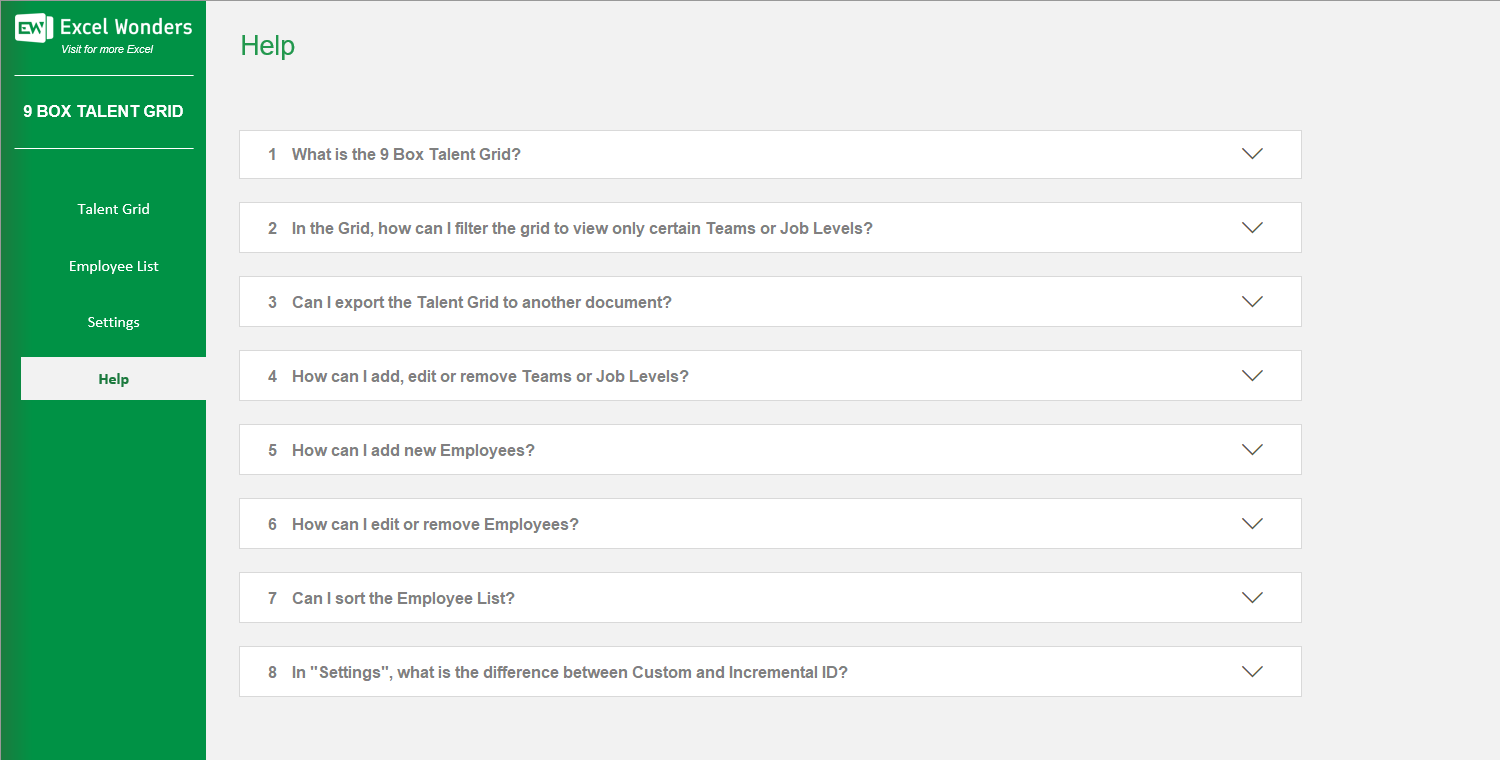
The 9 Box Talent Grid is a tool used for talent management and succession planning. It categorizes employees on a nine-box matrix based on two factors: current performance and future potential.
Use the slicers on the left-hand side of the grid. Click a Team or Job Level to filter the view. The grid updates automatically.
Yes. Click the "Export" button in the top-right corner. In the pop-up window, set the file location, name, and format (PDF, PNG, JPG, or XLSX). Click "Export" to save the file.
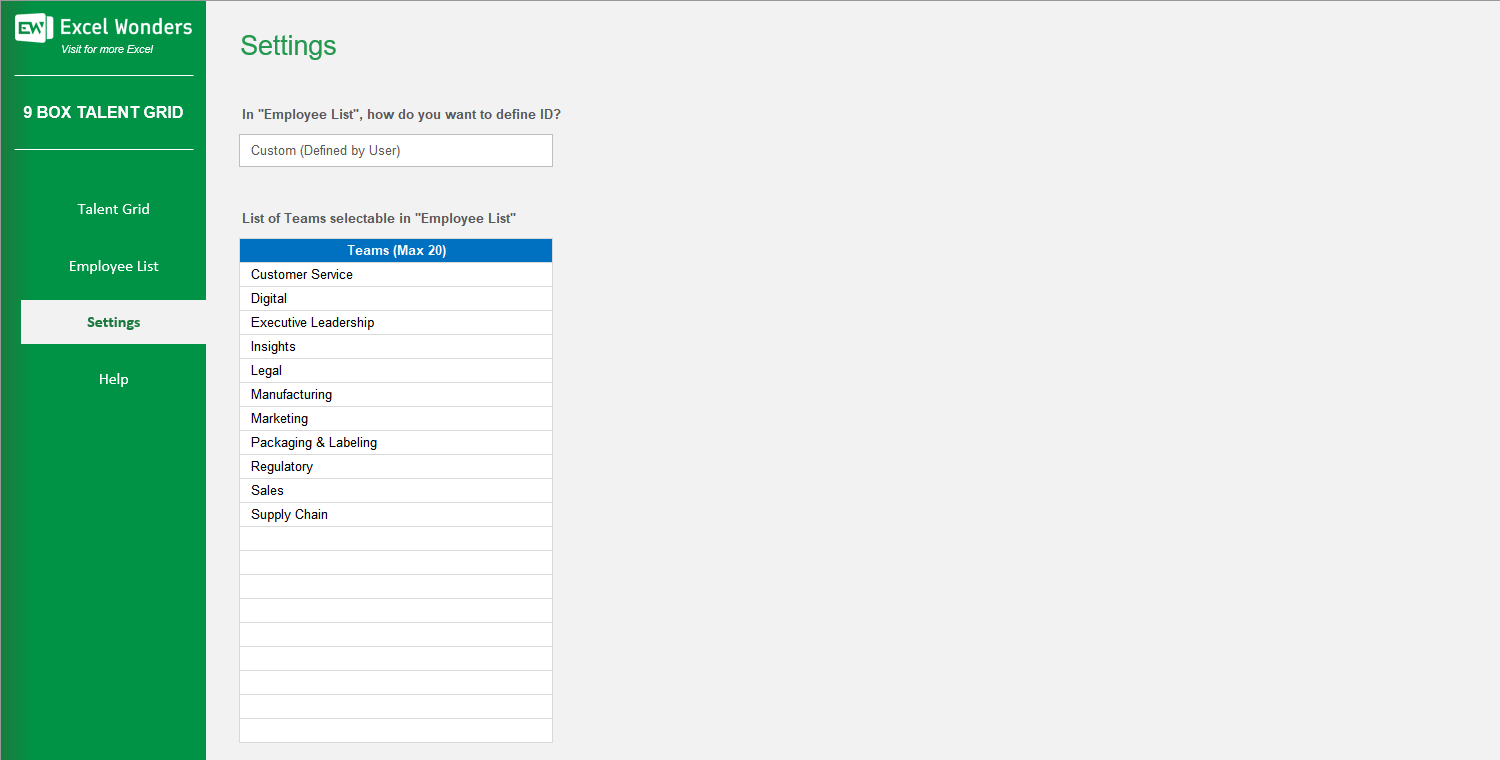
Navigate to the "Settings" sheet. You can manage Teams and Job Levels in their respective lists on this page. The template supports a maximum of 20 Teams and 20 Job Levels.
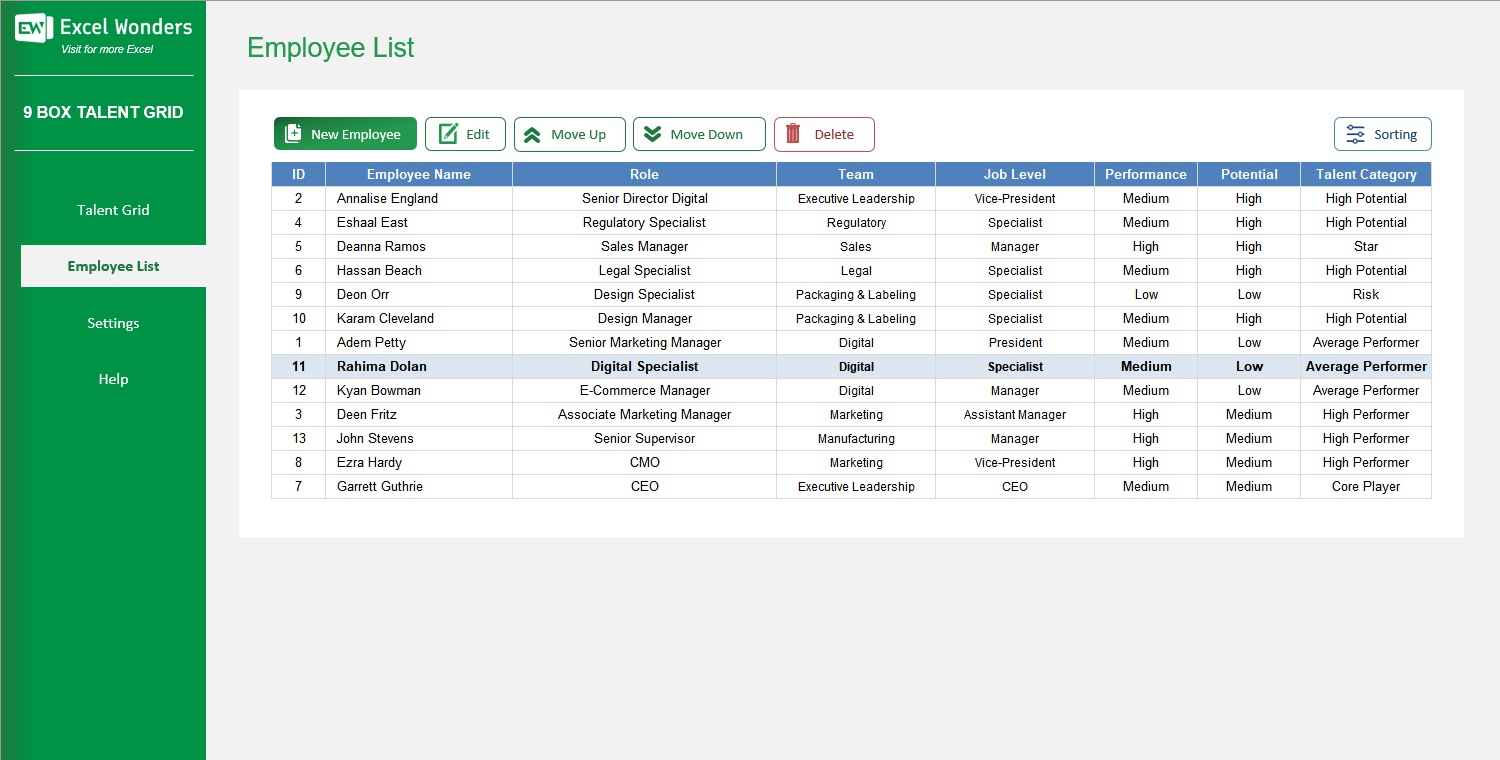
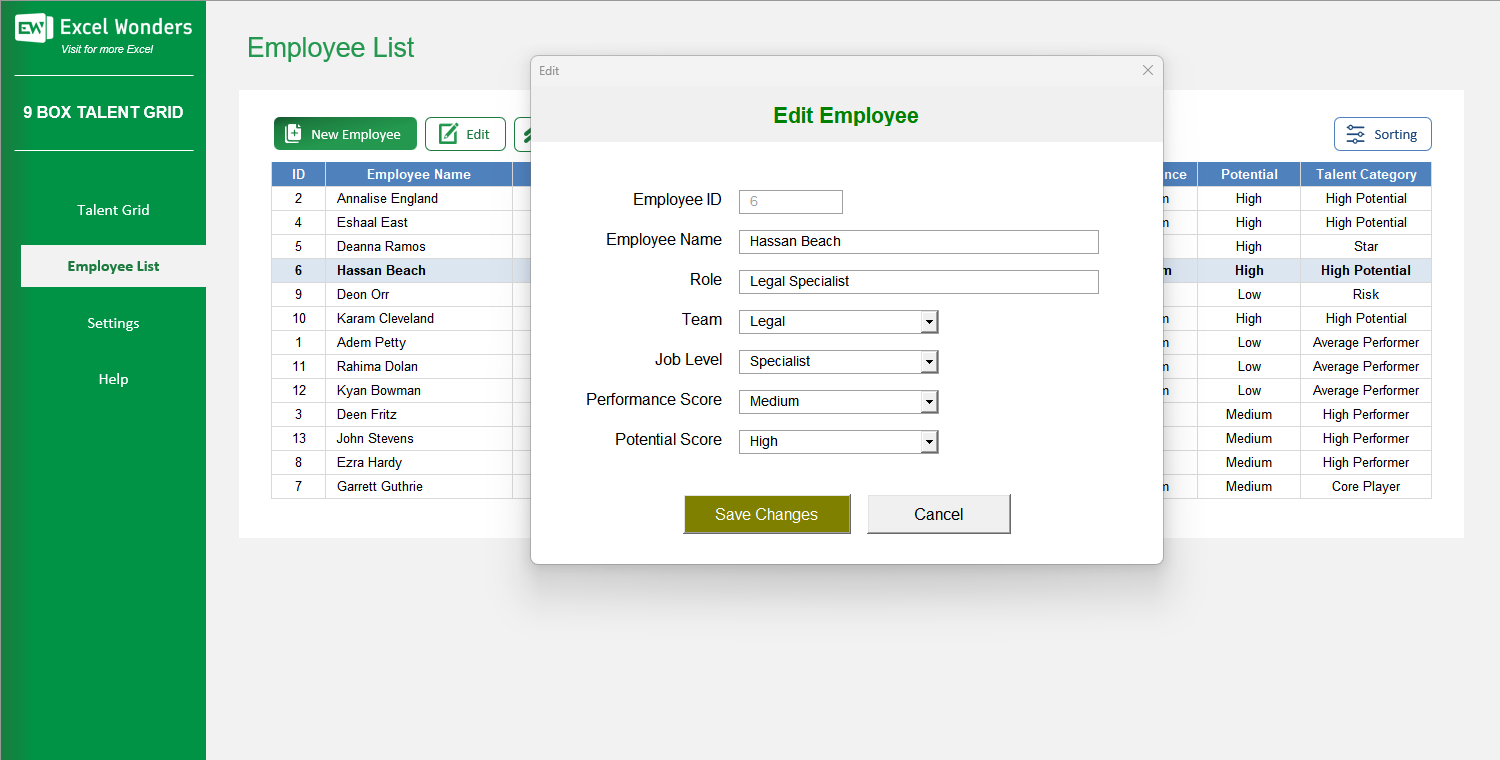
Go to the "Employee List" sheet and click the "New Employee" button. Enter the employee's details in the pop-up window and click "Create New". A new entry will appear below the selected employee or at the end of the list if none is selected.
On the "Employee List" sheet, select an employee by clicking their name. Click the "Edit" button to modify their details or the "Remove" button to delete them. Deleting an employee is permanent and cannot be undone.
To reorder an employee manually, select them and use the "Move Up" and "Move Down" buttons. To sort the entire list, click the "Sorting" button, then select a column and a sort direction (Ascending or Descending).
This setting determines how new employee IDs are generated. A Custom ID requires you to enter a unique ID for each new employee manually. An Incremental ID automatically assigns the next sequential number based on the highest existing ID.














 Share Options